Ingesting Data from Amazon S3 into a Snowflake Data Lake
Calibo Accelerate now supports ingestion of delta data into a Snowflake data lake from an Amazon S3 data source where the file format used is xlsx. An audit table is created on folder selection, during the job creation,
Let us create a pipeline with the following nodes:
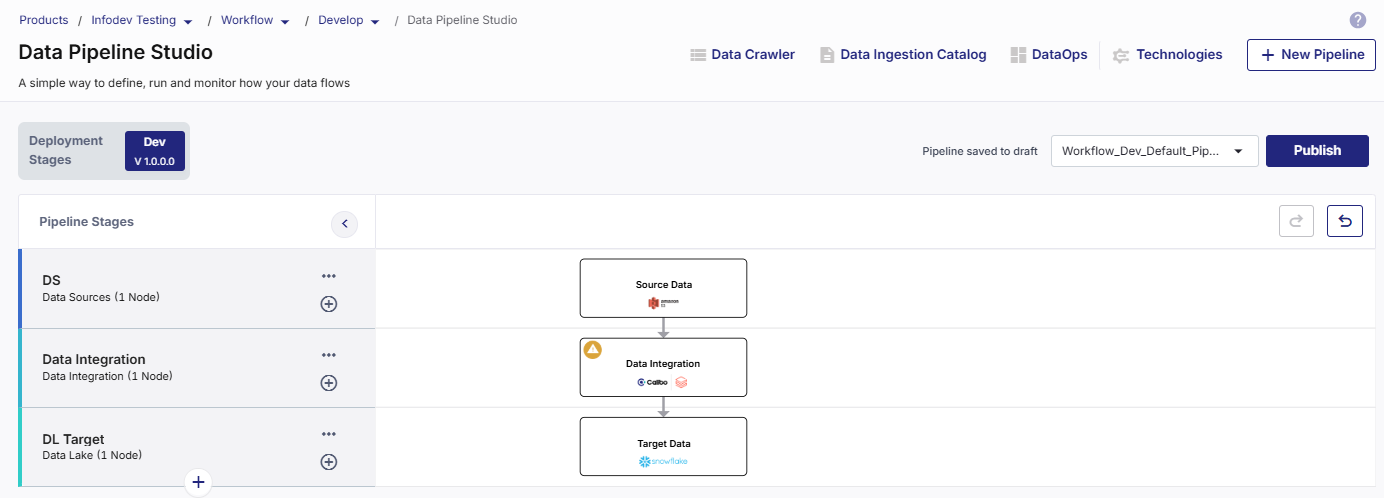
To create a data integration job using Amazon S3 as source and Snowflake as target
-
Configure the Amazon S3 nodes and select a folder with a .xlsx file.
-
Configure the Snowflake node.
-
Click the Databricks node in the data integration stage of the pipeline and click Create Templatized Job.
-
Complete the following steps to create the job:
 Job Name
-
Job Name - Provide an appropriate name for the data integration job.
-
Node Rerun Attempts - This is the number of times the pipeline rerun is attempted on this node, in case of failure. The default setting is done at the pipeline level. You can select rerun attempts for this node. If you do not set the rerun attempts, then the default setting is considered. You can select 1, 2, or 3.
-
Fault tolerance - Select the behaviour of the pipeline upon failure of a node. The options are:
-
Default - Subsequent nodes should be placed in a pending state, and the overall pipeline should show a failed status.
-
Skip on Failure - The descendant nodes should stop and skip execution.
-
Proceed on Failure - The descendant nodes should continue their normal operation on failure.
Click Next.
-
Source
In this stage, the source details are auto populated.
-
Source
-
Datastore
-
File Type
-
Folder and Path
-
Additional Options - Turn on this toggle to select and add additional parameters. See Additional Parameters for CSV, JSON, and Parquet file formats.
The following additional parameters are supported for Databricks for the CSV file format.
Parameter Description encoding For reading, decodes the CSV files by the given encoding type. For writing, specifies encoding (charset) of saved CSV files. quote Sets a single character used for escaping quoted values where the separator can be part of the value. escape Sets a single character used for escaping quotes inside an already quoted value. comment Sets a single character used for skipping lines beginning with this character. By default, it is disabled. nullValue Sets the string representation of a null value. Since 2.0.1, this nullValue param applies to all supported types including the string type. muliLine Allows a row to span multiple lines, by parsing line breaks within quoted values as part of the value itself. CSV built-in functions ignore this option. ignoreLeadingWhiteSpace A flag indicating whether or not leading whitespaces from values being read/written should be skipped. igoreTrailingWhiteSpace A flag indicating whether or not trailing whitespaces from values being read/written should be skipped.
The following parameters are supported for Databricks for the JSON file format.
Parameter Description encoding For reading, allows to forcibly set one of standard basic or extended encoding for the JSON files. For example UTF-16BE, UTF-32LE. For writing, specifies encoding (charset) of saved json files. JSON built-in functions ignore this option. nullValue Defines the string that should be treated as a null value when reading a JSON file or used to represent nulls when writing a JSON file. muliLine Allows a row to span multiple lines, by parsing line breaks within quoted values as part of the value itself. CSV built-in functions ignore this option. allowSingleQuotes Allows single quotes around field names and string values, in addition to double quotes. allowUnquotedFieldNames Allows unquoted JSON field names. Click Next.
Target
The fields in this stage are auto populated, based on the configured target node.
-
Target
-
Datastore
-
Warehouse
-
Database
-
Schema
Click Next.
Schema Mapping
In this stage, you must provide the schema mapping details for all the mapped tables from the previous step.
-
Mapped Data - Select a mapping.
Schema Mapping for Target Tables
-
Infer Source Schema - This setting automatically identifies the schema with data types for columns.
If you turn off this toggle, you can manually edit the data types of the columns and rename the columns as required.
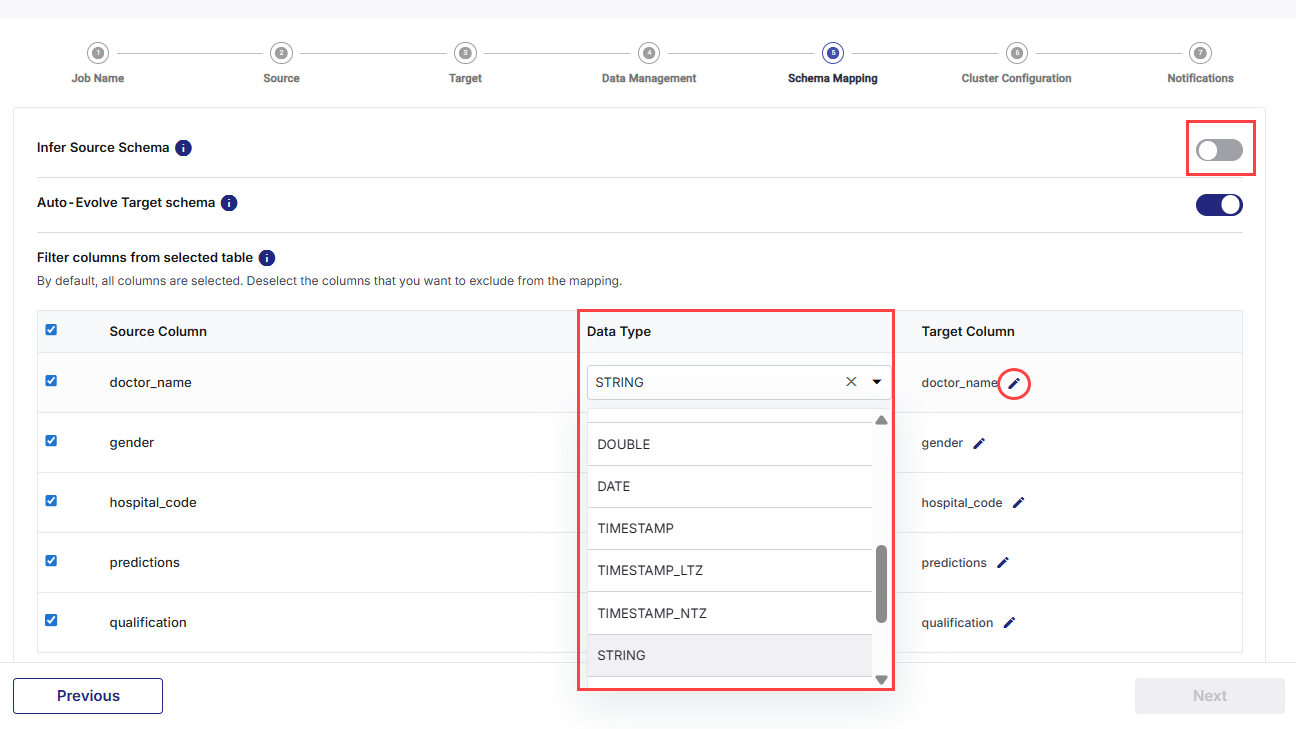
-
Auto-Evolve Target Schema- When this toggle is turned on, it allows the addition of columns in the target table if a column is added to the source table. If this toggle is turned off and there is schema change in the source table, then the job fails.
-
Filter columns from selected table - In this section, deselect the columns that you want to exclude from the mapping. Edit the names of the target columns as per your requirement.
-
Add Custom Columns - Enable this option to add additional columns apart from the existing columns of the table. To add custom columns, do the following:
-
Enable Add Custom Columns.
-
Column Name - Provide a unique column name for the custom column that you want to add.
-
Type and Value - Select the parameter type for the new column. Choose from the following options:
-
Static Parameter - Provide a static value that is added for this column. The custom column is checked for this value.
-
System Parameter - Select a system-generated parameter from the dropdown list and that is added to the custom column.
-
Generated - Provide the SQL code to combine two or more columns to generate the value of the new column.
-
-
Click Add Custom Columns after reviewing the details provided for each column.
Repeat the steps for the number of columns that you want to add.
-
Click Add Schema Mapping to add the various options configured on this screen, to the integration job.
-
Data Management
In this stage, you do the following:
-
Provide target tables for each source folder that is selected. You can either select an existing table from the dropdown or create a new table.
-
Select the operation type: Append or Overwrite.

Note:
If a folder is selected in the source which contains an Excel file the selected target table serves as the audit table. In this case, the selected target table for snk will serve as an audit table. Additional tables must be created to map each sheet in the Excel file with a table in the target.
Click Next.
Cluster Configuration
You can select an all-purpose cluster or a job cluster to run the configured job. In case your Databricks cluster is not created through the Calibo Accelerate platform and you want to update custom environment variables, refer to the following:
Updating Custom Variables for a Databricks Cluster
All Purpose Clusters
Cluster - Select the all-purpose cluster that you want to use for the data integration job, from the dropdown list.
Note:
If you do not see a cluster configuration in the dropdown list, it is possible that the configured Databricks cluster has been deleted.
In this case, you must create a new Databricks cluster configuration in the Data Integration section of Cloud Platform Tools and Technologies. Delete the data integration node from the data pipeline, add a new node with the newly created configuration, and configure the job again. Now the user can select the newly configured Databricks cluster.
Job Cluster
Cluster Details Description Choose Cluster Provide a name for the job cluster that you want to create. Job Configuration Name Provide a name for the job cluster configuration. Databricks Runtime Version Select the appropriate Databricks version. Worker Type Select the worker type for the job cluster. Workers Enter the number of workers to be used for running the job in the job cluster.
You can either have a fixed number of workers or you can choose autoscaling.
Enable Autoscaling Autoscaling helps in scaling up or down the number of workers within the range specified by you. This helps in reallocating workers to a job during its compute-intensive phase. Once the compute requirement reduces the excess number of workers are removed. This helps control your resource costs. Cloud Infrastructure Details First on Demand Provide the number of cluster nodes that are marked as first_on_demand.
The first_on_demand nodes of the cluster are placed on on-demand instances.
Availability Choose the type of EC2 instances to launch your Apache Spark clusters, from the following options:
-
Spot
-
On-demand
-
Spot with fallback
Zone Identifier of the availability zone or data center in which the cluster resides.
The provided availability zone must be in the same region as the Databricks deployment.
Instance Profile ARN Provide an instance profile ARN that can access the target Amazon S3 bucket. EBS Volume Type The type of EBS volume that is launched with this cluster. EBS Volume Count The number of volumes launched for each instance of the cluster. EBS Volume Size The size of the EBS volume to be used for the cluster. Additional Details Spark Config To fine tune Spark jobs, provide custom Spark configuration properties in key value pairs. Environment Variables Configure custom environment variables that you can use in init scripts. Logging Path (DBFS Only) Provide the logging path to deliver the logs for the Spark jobs. Init Scripts Provide the init or initialization scripts that run during the start up of each cluster. Cluster ConfigurationYou can select an all-purpose cluster or a job cluster to run the configured job. In case your Databricks cluster is not created through the Calibo Accelerate platform and you want to update custom environment variables, refer to the following:
Updating Custom Variables for a Databricks Cluster
All Purpose ClustersCluster - Select the all-purpose cluster that you want to use for the data integration job, from the dropdown list.
Job ClusterCluster Details Description Choose Cluster Provide a name for the job cluster that you want to create. Job Configuration Name Provide a name for the job cluster configuration. Databricks Runtime Version Select the appropriate Databricks version. Worker Type Select the worker type for the job cluster. Workers Enter the number of workers to be used for running the job in the job cluster.
You can either have a fixed number of workers or you can choose autoscaling.
Enable Autoscaling Autoscaling helps in scaling up or down the number of workers within the range specified by you. This helps in reallocating workers to a job during its compute-intensive phase. Once the compute requirement reduces the excess number of workers are removed. This helps control your resource costs. Cloud Infrastructure Details First on Demand Provide the number of cluster nodes that are marked as first_on_demand.
The first_on_demand nodes of the cluster are placed on on-demand instances.
Availability Choose the type of EC2 instances to launch your Apache Spark clusters, from the following options:
Spot
On-demand
Spot with fallback
Zone Identifier of the availability zone or data center in which the cluster resides.
The provided availability zone must be in the same region as the Databricks deployment.
Instance Profile ARN Provide an instance profile ARN that can access the target Amazon S3 bucket. EBS Volume Type The type of EBS volume that is launched with this cluster. EBS Volume Count The number of volumes launched for each instance of the cluster. EBS Volume Size The size of the EBS volume to be used for the cluster. Additional Details Spark Config To fine tune Spark jobs, provide custom Spark configuration properties in key value pairs. Environment Variables Configure custom environment variables that you can use in init scripts. Logging Path (DBFS Only) Provide the logging path to deliver the logs for the Spark jobs. Init Scripts Provide the init or initialization scripts that run during the start up of each cluster. -
-
Select All
-
Node Execution Failed
-
Node Execution Succeeded
-
Node Execution Running
-
Node Execution Rejected
Notifications
You can configure the SQS and SNS services to send notifications related to the node in this job. This provides information about various events related to the node without connecting to the Calibo Accelerate platform.
| SQS and SNS |
|---|
| Configurations - Select an SQS or SNS configuration that is integrated with the Calibo Accelerate platform. |
|
Events - Enable the events for which you want to enable notifications: |
| Event Details - Select the details of the events from the dropdown list, that you want to include in the notifications. |
| Additional Parameters - Provide any additional parameters that are to be added in the SQS and SNS notifications. A sample JSON is provided, you can use this to write logic for processing the events. |
What happens after the first job run?
-
After the first job run target tables are created as per the number of sheets in the source Excel file and the source data is loaded into the respective tables.
-
For subsequent job runs, the delta data is loaded into the tables.
| Recommended Topics
|
What's next? Databricks Templatized Data Integration Jobs |